DO YOU HAVE QUESTIONS? WE WILL ADVISE YOU FREE OF CHARGE! +49 6184 9314-0 📞

🧾 KLARNA AND PAYPAL - 100% SECURE PAYMENT

FREE SHIPPING AND RETURNS 🚚

1. General Information on Charging Electric Cars

How does charging electric cars work?

How do electric cars charge?

Electric cars are supplied with electrical energy by connecting to a charging infrastructure. The charging infrastructure includes charging stations that provide either alternating current (AC), known as wallboxes, or direct current (DC), known as fast chargers. The vehicle is connected to the charging station via the charging cable, and the charging process begins. The charging time depends on the battery capacity of the vehicle and the power of the charging station.

What different types of charging stations are there?

There are three main types of charging stations:

  1. Household sockets: For slow charging at home.
  2. Wallboxes: Faster charging at home or at work, with fixed installation.
  3. Public charging stations: Fast charging stations along streets, highways or in parking garages.
How long does it take to fully charge an electric car?

Charging time depends on the electric car's battery capacity and the charging station's power output. At a conventional household socket, it can take several hours to over a day, while fast-charging stations can enable a charge in 30 minutes to an hour. With an AC charger with a power output such as our EM2GO Pro Power 11KW, you can charge approximately 45 km/h, depending on the vehicle type.

Can I charge my electric car using a normal household socket?

Yes, it is possible to charge an electric car using a conventional single-phase household socket, for example with our EM2GO Take3.6. However, the charging power is usually lower than with three-phase charging stations, which can result in a longer charging process.
2. Wallbox and home charging

Do I need a wallbox to charge my electric car at home?

Basically, you need a device to charge an electric car. A wallbox is not absolutely necessary, but it offers many advantages such as faster charging times, additional safety functions, significantly more flexibility and easier handling of the charging process.

Does a wallbox have to be registered with the network operator?

EV chargers with an output of 11kW or more must be registered with the grid operator.
For this purpose, form B.3 according to VDE-AR-N 4100 must be completed by the electrical contractor.

How do I add a charging station?

The charging station is first connected via the Bluetooth® connection. Once connected, the wallbox can be connected via Wi-Fi.

1. Switch on the charging station and keep your smartphone or tablet within range of the charging station.

2. Start the app and tap the QR code icon or the plus icon in the upper right corner.

3. Now scan the QR code of the charging station, which you will find in the operating manual and under the housing cover of the charging station.

4. After the QR code has been scanned, enter the 6-digit PUK and click "Confirm Add".

5. The app will now search for the charging station and add it automatically.

Note: Accept the camera and location permissions requested by the app. Without these permissions, the code cannot be scanned and the charging station cannot be found.

3. Troubleshooting and Issues

Why is my charging history missing?

Charging history and statistics can only be saved if the charger is connected via Wi-Fi. If the charger is only connected via Bluetooth® but not via Wi-Fi, the charging history and statistics cannot be transferred to the app.

We strongly recommend connecting the charger to Wi-Fi to transfer all information to the APP and ensure a stable connection. Connecting via Bluetooth® only supports basic functions.

A ground fault is displayed

1. Check if the earth cable is properly installed.

2. For a single-phase pile, the neutral line (N, L) may be connected in reverse, so the customer needs to check the order of the neutral line, or the customer needs to try it after replacing the current neutral installation mode.

A short circuit fault is reported

The vehicle interface has a short circuit and needs urgent repair.

Emergency Stop fault indicator

When the emergency stop button is pressed, the customer must turn the emergency stop button clockwise to clear the emergency stop fault.

The charging station cannot be connected.

If the charging station cannot be connected via Bluetooth or WLAN, please follow these step-by-step instructions:

1. Switch off the charging station by disconnecting it from the power supply.

2. Uninstall the "EM2GO Connect" app.

3. Reinstall the "EM2GO Connect" app.

4. Make sure that the device "BL602-BLE-DEV" does not appear in the Bluetooth settings. If the device is listed, turn Bluetooth off and then on again. Remove the device from the list if it is still listed.

5. Switch on the charging station.

6. Go to the "WLAN" menu of the charging station and switch off the WLAN function if it is switched on.

5. Start the app, log in and tap on the QR code.

6. Tap on "manually enter" or "manual input" and enter the serial number and the PUK. You can find these on the back of the instruction manual and under the cover of the charging station.

7. Tap on "Add" or "Confirm add" and wait until the charging station has been connected via Bluetooth and the app displays the overview page of the charging station. If the charging station is not connected, repeat the process.

8. Tap on the WLAN icon in the app and enter the WLAN name and WLAN password of your WLAN network.

9. Restart the charging station by disconnecting it from the power supply and reconnecting it to the power supply.

10. Activate the WLAN function of the charging station by activating the switch in the "WLAN" menu of the charging station.

11. The charging station is connected to the WLAN as soon as the network name and an IP address appear in the "WLAN" menu.

12. Close the "EM2GO Connect" app so that it is no longer running in the background, or switch the smartphone off and on again.

13. Start the "EM2GO Connect" app. The charging station should now be displayed as "Online".

Notes:

- Please ensure that the smartphone and charging station are within 10m range.

- WLAN networks that are encrypted with WPA3 or operate on the 5GHz band are not supported. Make sure that the WLAN operates on the 2.4GHz band and is encrypted with WPA2.

- The WLAN name and WLAN password should not contain spaces, umlauts or emojis. Allowed special characters are: @ ! $ % & / ( ) = ? [ ] { }

- If you cannot establish a WLAN connection, try setting up an additional WLAN network. This can be a guest network that has a different WLAN name and password.

4. Which app do I need for my EM2GO product?

EM2GO CONNECT APP & EM2APP

To provide you with the best possible user experience, we have developed two different apps for different products. Here you will find details on which app is suitable for which product:

1. EM2GO Connect App

2. EM2APP

Tip: Make sure to download the correct app for your product to make optimal use of all functions.

If you are unsure or have further questions, please contact our customer service – we will be happy to help!

5. SIM Card & APN List for Pro Power Models

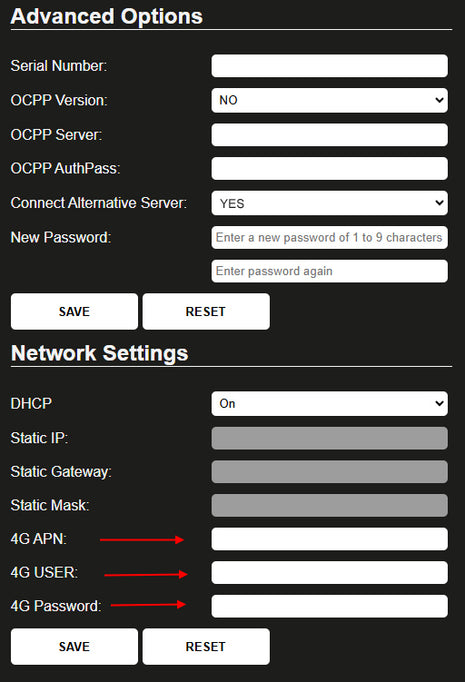
SIM Card & APN List

If you are using a SIM card, please click
this link to enter the necessary data in the web interface to connect your wallbox to the Internet.

https://www.lte-anbieter.info/ratgeber/apn/uebersicht.php#apn1

Note: The SIM card must be activated without a PIN.

6. Backend Registration

How do I register in the backend?

Here you will find all information regarding registration for the backend.

Login

Forgot your password?

Don't have an account yet?
Create account